
Streaming Playback Troubleshooting for Android and TV
Independent editorial guidance on compatibility, device settings, safety, and responsible use.
If you searched for Pikashow because a video buffers, goes black or refuses to start, first establish whether the problem affects one title, one device or the whole service. The steps below apply to publisher-verified streaming apps on Android phones and televisions. Use the authorised provider’s catalogue and support channels to check access, and change one setting at a time so you can tell what helped.
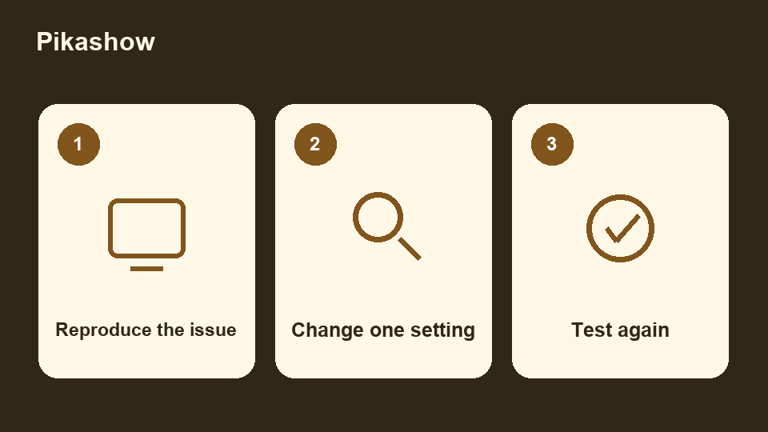
Note the error and test another title
Write down the exact error message, the title and the time the problem occurred. For a series, record the season and episode. If a stream stalls at the same point every time, note the timestamp. Try a second title that your account can access in the same app. If the second title plays normally, check the first title on another supported device when possible. These quick comparisons give the provider more detail than a report that the app is broken.
If several titles fail, try a different authorised app on the same device. If both apps stall, look for a shared cause such as the network or device. If only one app fails, check its support page for an outage notice or guidance for the error message. [Google TV Help on testing another title or device](https://support.google.com/googletv/answer/10031689?hl=en).
Check the connection where the video plays
On a TV or streaming box, open network settings and confirm that it is connected to the intended home network. A strong connection on your phone in another room provides little information about the signal reaching the TV. If you can, temporarily test an Ethernet connection to the TV or streaming box. If the problem clears during that test, look at Wi-Fi coverage and router placement. If several devices in the household are having trouble, restart the router and retest after it reconnects.
If the player offers video quality controls, choose a lower setting briefly and see whether playback becomes steadier. For example, if a live event keeps pausing on the TV while a large household download is running, pause the download and repeat the test with the same stream. Changing one variable at a time helps you determine whether the connection is involved. [Google TV Help on checking the network](https://support.google.com/googletv/answer/10070482).
Restart the app and check for updates
Close and reopen the app. If it still freezes, restart the playback device using its settings. On a television connected to an external streaming box, restart the box if that is where the app runs. Check the device’s app store for an update from the same verified publisher, and look in system settings for device updates. Test playback again after each change.
If the app repeatedly stops responding, look for a Clear cache option under its app settings. Menu names vary across devices. Use that option before considering a reset of the app’s stored data. Clearing data may sign you out or remove local settings, so check that you can sign in again before taking that step. [Google TV Help on restart, updates and clearing cache](https://support.google.com/googletv/answer/10031689?hl=en).
Confirm access and send a report if playback still fails
A title that disappears or reports a region restriction needs an access check. Look for the studio, distributor, broadcaster or event organiser’s announcement naming a streaming partner for your country, then check the partner’s own catalogue and your account’s access. Confirm the app publisher by following the provider’s verified website to its store listing and checking the developer details. If the identity behind a Pikashow listing is unclear, use the rights holder’s named partner to continue troubleshooting. Rights and profile settings can affect which titles appear. [Netflix Help Centre on missing titles](https://help.netflix.com/en/node/125344).
If playback still fails for a confirmed title, contact the provider using its published support page. Include the title, time and time zone, exact error, device model, operating system and the results of your comparison tests. For example, report that episode three stopped at the same point on a TV and phone while episode four played on both. You can provide that information without sending a password or payment details.
Next step